Saturday, 28 June 2014

Android L 5.0 vs 4.4 kitkat : a comparison

Google has now revealed the first details on the next iteration of it's popular Android OS, and it's shaping up to be one of the most significant updates in the history of the platform. Google is building on the good work done in Ice Cream Sandwich and KitKat, streamlining Android to ensure that it works better than ever on the widest range of devices, while simultaneously working to make it more feature-rich and visually alluring than ever. Want to know howAndroid L shapes up against Android 4.4? Look no further - we're putting them head-to-head. 

Android 5.0 L vs. Android KitKat: Design

The big news regarding Android L is the fresh look, dubbed "Material" by Google. While there are some similarities between Material and the look of "stock" Android KitKat, the designers at Mountain View are clearly forging a new path here, in purely aesthetic terms. 

The flatness seen in KitKat is still present and correct, but it comes with a twist: realism. Animation is going to play a big part in the new design, and Android L will adopt real-time shadows to give its interface more depth and make it look a little more dynamic. The shadows are there because Android L will make much more use of layers in the UI, allowing developers to do all kinds of visual customisation within their apps.
Another big change is that the famous Android "soft" buttons have been given a face lift, and look even more stylish than before - even if they do call to mind the symbols we used to see on our old VCR players. Android L is clearly an update on the existing KitKat style, but Google is embellishing it with new visual tricks to make things even more alluring. From what we've seen, it strikes us as massive improvement over the often flat and uninspiring Android 4.4.

Android 5.0 L vs. Android KitKat: Security

Google has made massive strides with Android when it comes to overall security, coming up with innovations such as pattern unlocks and facial recognition. KitKat didn't bring much new to the table in this respect, but it worked well enough. Android L's big advance is going to be about making security more convenient, and it will do this using two methods: Android Wear and your current location.

In the first case, you can use your shiny new Android smartwatch as an authentication tool to automatically bypass your phone's passcode when it detects the watch nearby. In the second example, you can designate safe zones – your home, for example – where your phone will switch off your lock code. While both of these features could potentially create a security risk, if someone steals your phone and your smartwatch, they have access to all of your personal data, for instance, but they will overcome the irksome issue of having to continually unlock your device every few minutes.

Android 5.0 L vs. Android KitKat: Notifications 

Notifications have been Android's strong suit since day one, and Google is making them even better in Android L. The big change here is that they're being integrated into the lock screen – something Google previously experimented with when it developed lock screen widgets which allowed you to view emails and events without actually unlocking your phone.

As well as making notifications the first thing you see when you pick up your handset, Google is working on making them smarter when the phone is in active use. For example, in KitKat a call would totally interrupt whatever activity you were involved in, be it reading a book, browsing your emails or playing a game. In Android L, events such as these will pop up at the top of the screen, a la Samsung’s Galaxy S5, meaning you can choose to jump to that event or ignore it with a quick tap without leaving your current task.
Compared to Android 4.4, notifications are going to be smarter, more intuitive and less intrusive than before. KitKat's notifications system is decent enough, but it was basically recycling what had come before, so it’s good to see some out-of-the-box thinking from Google in this respect.

Android 5.0 L vs. Android KitKat: Battery Life

Project Butter was Google's way of making Android feel smoother and slicker, and now the company has revealed Project Volta – a system which will provide developers with a better means of determining what elements of their apps are draining battery at an unnecessary rate. Because Volta will open up the battery stats to devs, they can tinker with their code to make apps more efficient and spot potential problem areas.

Android L will also take a leaf out of HTC and Samsung's books by coming with a battery saving mode by default. This will help users get as much mileage out of each charge as possible by throttling certain functions when juice is low. Such improvements will ensure that Android L is leaps and bounds ahead of KitKat, which only offers basic stats on what process is gobbling up the most power.
Android L will begin rolling out to consumers in Q4. 

Monday, 23 June 2014

Microsoft Outlook app is now available on android

First, the good news: Microsoft has made its Outlook Web App (OWA) available for some devices running Google's Android operating system.
The app is actually a prerelease that will allow Microsoft to fix bugs before holding a full-scale rollout, tech site Mashable reported.
"For now, the app is limited to devices running Android KitKat 4.4 or higher that have 'small' or 'normal'-sized screens. Supported devices include the Samsung Galaxy S4 and S5, the Nexus 5, Moto X, Samsung Galaxy Note 3, Sony Xperia Z1 and Sony Xperia ZL, but the company says it will be adding more devices regularly," it said.
Mashable added the app will have the same features as the version for Apple's iOS.
Also, the Android OWA can automatically sync changes to a device's contacts with the contacts list in Office 365.
"If friends change their phone numbers and you update their information in your phone's contacts app, for example, the change will automatically be reflected in their contact information in Office 365," it said.
Now, the bad news: the app in its present form is limited to users with Office 365 for business accounts.
This means it cannot be used yet for those with personal, home or Outlook.com accounts, at least for now. 

Sunday, 22 June 2014

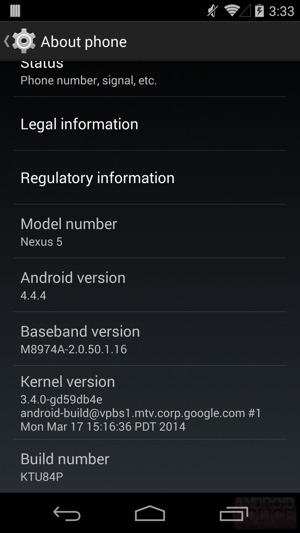
Android 4.4.4 is on the air for nexus devices

It's been barely a month since Android 4.4.3 started rolling out for Nexus devices and Google has already started rolling out the 4.4.4 update. But while this may not be as big an update as its predecessor (which itself wasn't especially big) it does take care of a major security issue.
According to the change log posted by Sprint, this update just brings a security fix. According to Android Police, it contains a patch for an OpenSSL bug, which would have allowed a man-in-the-middle attack. This is similar to the Heartbleed bug that was addressed in 4.4.3 update.
The OTA update is just rolling out for the Nexus 5 for now but Google has provided factory images on its website for the Nexus 4, 5, 7 and 10. If you used Towelroot to root your device then it will remain unaffected.

Android and Windows to get 'kill switch'

Google and Microsoft will add a "kill-switch" feature to their Android and Windows phone operating systems.
The feature is a method of making a handset completely useless if it is stolen, rendering a theft pointless.
Authorities have been urging tech firms to take steps to help curb phone theft and argued that a kill-switch feature can help resolve the problem.
Apple and Samsung, two of the biggest phone makers, offer a similar feature on some of their devices.
The move by Google and Microsoft means that kill switches will now be a part of the three most popular phone operating systems in the world.
Growing problem
Smartphone theft has become a big problem across the world. According to a report by US authorities:
  • Some 3.1 million mobile devices were stolen in the US in 2013, nearly double the number of devices stolen in 2012
  • One in three Europeans experienced the theft or loss of a mobile device in 2013
  • In South Korea mobile device theft increased five-fold between 2009 and 2012
  • In Colombia criminals stole over one million devices in 2013
In an attempt to tackle the issue, policymakers have launched an initiative called Secure our Smartphones.
As part of it, they have urged technology firms to take steps to make it less attractive for robbers to steal mobile devices.
"An activated kill switch converts an easy-to-sell, high-value multimedia device into a jumble of plastic and glass, drastically reducing its street value," the report by New York Attorney General said.
line
Explainer: How a kill switch works
  • A "hard" kill switch would render a stolen device permanently unusable and is favoured by legislators who want to give stolen devices the "value of a paperweight"
  • A "soft" kill switch only make a phone unusable to "an unauthorised user"
  • Some argue that the only way to permanently disable a phone is to physically damage it
  • Experts worry that hackers could find a way to hijack a kill signal and turn off phones
  • If a phone is turned off or put into aeroplane mode, it might not receive the kill signal at all, warn experts
line
Authorities claim that Apple's feature - dubbed Activation Lock - which it introduced on all iPhones running the iOS 7 operating system in September last year, has helped reduce theft substantially.
According to a report by the New York State Attorney General, in the first five months of 2014 the theft of Apple devices fell by 17% in New York City.
Meanwhile iPhone robberies fell 24% in London and 38% in San Francisco in the six months after Apple introduced the feature, compared to the previous six months.
"During the same period, thefts of other popular mobile devices increased," the report says.
Manoj Menon, managing director of consulting firm Frost & Sullivan said the move was a step in the right direction.
"This is a fantastic move and will go a long way in helping authorities come one step closer to realising a vision of zero theft of mobile phone," he told the BBC.
But he added that it was "not a foolproof system" as thieves "will find a way to monetise the accessories and parts of a phone".
However, he said the market for parts and accessories was relatively small and the kill switch "does substantially reduce the financial incentive of stealing a device".

source: http://bbc.com/news/technology-27935972

Thursday, 19 June 2014

Android 5.0 is switching to ART virtual machine

Google's android operating system will move from Dalvik to the ART virtual machine in its next edition.
The mobile operating system's next version, which Google is expected to be released as Android 5.0 Lollipop at its annual Google I/O Developer Conference next week, will be the first to switch from Dalvik as the default, following the introduction of ART as an option in Android 4.4 Kitkat.
End users should see a significant improvement in the performance of devices running ART, however there are likely to be some incompatibilities with older apps from the Google Play Store that haven't been optimised for it.
While the changes have been in progress for some time, the announcement on the AOSP project pages, under the title "Dalvik is dead, Long live dalvik" could not have come at a better time for Google.
Earlier this month, Oracle, the owner of the Java language, won an appeal that meant that vast swathes of Java code in the implementation of Dalvik were in potential breach of copyright, after successfully arguing that although the Java library is open source, the APIs involved are protected by copyright.
The ruling, which has huge repercussions for software developers, sets a precedent that could lead to a series of high profile lawsuits between software houses and developers who have used open source code. INQUIRER readers have been sharply divided on the subject, with many siding either for or against Oracle in comments.
It's not clear if the timing is coincidental or simply convenient, but it has come just in time for the expected announcement next week. After all, the new software will have to be completed and uploaded to millions of devices in order to be available from launch on any new devices that also appear at the Google I/O Developer Conference.

Nokia releases new launcher app for nokia android phones:z launcer

It seems positively bizarre to type, especially since I have been covering the company for nearly a decade now, but Nokia is no longer a cell phone maker. Once the largest phone vendor on the planet by a staggering margin, Nokia sold its devices and services business to Microsoft and will now wear a number of new hats as it looks toward the future. One of those hats, as it turns out, is that of an Android developer — and the company’s first big software announcement is a shockingly impressive one.
Nokia on Thursday took the wraps off of Z Launcher, a truly novel home screen replacement for Android phones.
Android launchers often get lost in trying to differentiate. They also sometimes attempt to pack too much onto each screen. Z Launcher takes the exact opposite approach, stripping away all the noise and displaying only a few key items.
At the top of the screen are the time, date and one upcoming calendar event. Tapping the time will open Android’s clock app and tapping the calendar event will open the phone’s Calendar app.
The remainder of the screen is dedicated to just a few apps, contacts and web pages.
nokia-z-launcher-2
Five static shortcuts appear at the bottom of the screen, while the majority of the launcher screen is occupied by six additional shortcuts. These items lead to a combination of apps, contacts and web pages that you open most often.
Z Launcher is constantly learning and evolving based on your usage patterns. It remembers the apps you use most frequently and monitors what times of the day you use different apps. The same holds true for contacts and web pages. The launcher then displays the content you’re most likely to use at any given time.
But what about all the other content on your phone? Here’s where things get really interesting.
My favorite feature of Z Launcher is “Scribble.” With this nifty feature, everything on an Android phone is just a few swipes away.
Scribble allows users to scribble letters anywhere on the launcher screen in order to open an app. So, for example, if the user wants to open Twitter and it’s not currently on the screen, he or she can simply scribble a “T” and then a “W” on the display.
As each letter is drawn, a list drills down apps, web pages and contacts until the desired item is tapped. Z Launcher remembers the content you access most often and it will surface those items higher each time you scribble. So next time a “T” is drawn, for example, Twitter might be the first result.
Web searches can also be performed by scribbling letters on the screen.
Z Launcher is a very nifty offering from Nokia and it has the potential to completely change the way you use your phone. Smartphones are all about apps, plain and simple. With Z Launcher, your most used apps take center stage and everything else is a few short swipes away.
Nokia’s Z Launcher app is currently available for free as a pre-beta release, and it is compatible with most modern Android phones. I have been testing it for about a day on a Nexus 5, and I have been quite impressed with the app. Also of note, I have not run into any issues despite Z Launcher’s early beta status.

Wednesday, 18 June 2014

Make Android More secure: 10 suggestions

There are several best practices and precautionary steps you can take to avoid a possible breach in mobile security. Here are 10 suggestions that will help ensure a more secure Android experience.
1: Set up your lock screen
This should be a no-brainer, but I'm always shocked to see how many Android users neglect to set this up. Anyone who uses a smartphone or tablet for business knows better than to leave their data out in the open for anyone to snag. But if you don't set a lock screen PIN/pattern/password, that's exactly what you're doing. This should be the first thing you configure after you've done the initial setup of your Android device. A word of warning: If you use a pattern for unlocking, always make sure you wipe your screen after usage. When you draw the pattern, you can leave behind a telltale smudge that gives the pattern away.
2: Never join an unsecure network
This also should not have to be said... but unfortunately, it does. Never join an unsecure network. I would say, "This is especially true when doing business with your smartphone," but it should really be the general rule. Yes, you will often work in coffee shops and restaurants. But if you have to do so on a wireless network with no password, do NOT transmit sensitive company data.
3: Set up phone storage encryption
This is mostly for those who are really paranoid about their data. You can encrypt the storage on your phone such that it will require an encryption password to even use the phone. This is much stronger than the standard lock screen password and is much harder to crack (because stored data is encrypted and can't be read unless it is decrypted). This will also require a lock screen password -- so, in effect, you will have a two-step authentication to use your Android device.
4: Do not allow unknown sources for installation
You may find some third-party application you want to install that is not a part of the Google Play Store. In most cases, that's fine. But in that one instance that it isn't, you may well have compromised the security of your company data. It's not worth it unless you can trust that third-party app 100 percent.
5: Install an anti-malware app
Android was recently hit by a rash of malware. Even though Google is working hard to fortify the vetting process on the Google Play Store -- and even rolling protection into the operating system -- it's always good to install and regularly use an anti-malware app. My app of choice is Malwarebytes. I always run a scan after installing an app (no matter from where the app was installed).
6: Install and use the Secure Update Scanner
The Secure Update Scanner was created to avoid an unusual security risk (called a Pileup Flaw). Developers were creating apps that were innocuous on install and first use. But when the first update hit, malware was added to the app. To avoid this, install and regularly run this tool. And run it prior to doing an update on any app or your operating system.
7: Read the permissions listing for apps
Never, ever, ever install an app without first reading the permissions listings. Why? If you're installing a game or a simple note-taking app (one that doesn't connect to a cloud service) and the permissions listing indicates that it needs access to your contacts, your phone, and your networking information, you may well be installing a malicious piece of software. Good security can easily start with a modicum of user action. It takes only a moment to read through the listings -- and that moment can save you from a world of headaches (or data loss).
8: Set up a SIM card lock
Along the same lines as the encryption of your device, you can also set up a SIM card lock so that the only way the SIM card can be accessed is by entering a user-created PIN. You will have to enter your SIM card PIN every time you start (or restart) your phone. But if you are uber-worried about data loss, the added time required to enter the SIM card PIN is well worth the security.
9: Turn off Bluetooth and hotspot services when not in use
With Bluetooth and hotspot services running, other devices can see your phone. This means you can possibly be open for security breaches. Do not leave these services running when they aren't needed. Period. Not only are they a possible security issue, they run down your battery. So turn these two services on only when you need to call upon them.
10: Turn on location settings only as needed
If there is no reason why you should leave a breadcrumb trail of your whereabouts, turn off location settings. Though this may not be directly related to your device security, it could compromise your personal security (given the wrong circumstances), which could also lead to a data breach. Turning off location services provides the added benefit of saving your battery and reduces unwanted data usage (from apps running in the background or remotely initiated by your mobile carrier).
Safe Androiding
No matter your platform, you should never take security lightly. Your data -- and your company's data -- is important and valuable. If it falls into the wrong hands, it could unleash a nightmare. With just a few simple steps (and a couple that are not-so-simple), your Android device will fare exponentially better in the wild.
Do you think Android is secure enough? If not, how would you improve the security of the platform?

Finally Nike+ FuelBand Comes to Android

Two years after Nike unveiled its first FuelBand—and a few months after it reportedly started to exit the business—Android users got an app for the fitness tracker.

Previously, wireless sync of Nike+ FuelBand info was only available on iOS devices, though any user could upload his or her data to Nike’s website via the FuelBand’s USB port. The new app, free in the Google Play store, is compatible with Android version 4.3 and above.

For the three months ending in April, 168 million U.S. consumers owned smartphones, with Android ranked as the top platform by market share, with 52.5%, according to digital tracker comScore. Apple’s share for the period was 41.4%.

The move comes amid questions about Nike’s commitment to hardware like the FuelBand. Tech news site CNET reported in april that Nike would lay off its wearable fitness hardware developers and shelve an upcoming update to the FuelBand. In a statement, Nike confirmed there would be some layoffs “as our Digital Sport priorities evolve.”

Since then, Nike has moved to expand its distribution of FuelBand devices—which it said it will continue to sell “for the forseeable future”—at reduced prices and, for some versions, through online clearinghouses including Gilt and The Clymb, as well as Amazon.

The Android and iOS FuelBand apps require the use of a FuelBand. Some competing fitness-tracking apps, like rival Under Armour’s MapMyFitness, can be used entirely on a smartphone.

Facebook Launches Slingshot : a snapchat competitor

After having failed to outright buy Snapchat last year, Facebook has now released Slingshot, a new app that aims to compete with it.
Slingshot is available to download for Android and iOS, but it comes with a pretty strange twist.
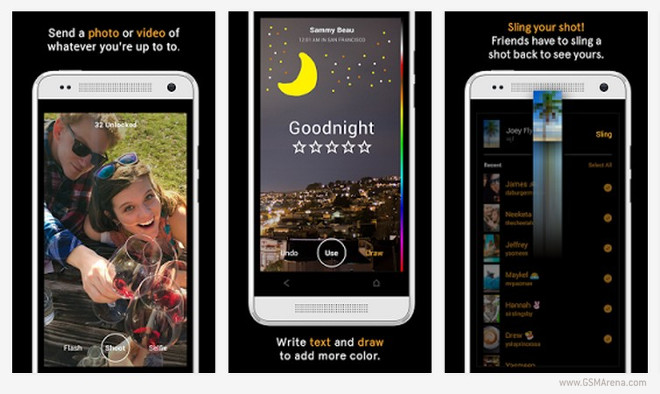
Like Snapchat, Slingshot lets you quickly share pictures and videos with your friends – and these disappear forever once they’ve been swiped away in the app. But here’s the catch: when you receive something in Slingshot, before you are able to view what’s been shared with you, you have to first send something back to that person.
So you can only see a photo someone sends you after you’ve sent that person a photo back. Thankfully though, you can also send a quick reply with your reaction after you’ve finally seen what was sent to you.
The app allows for captions and drawings to be added to what you’re sharing, which should appeal to the artistically inclined. ‘Slinging’ to multiple friends at once is possible too, obviously.

Worlds most secure android phone going to come up in the market : Silent circle


        recently set out to build the most secure Android phone in the world, and some have gone as far as to call the company’s Blackphone an “NSA-proof” smart phone. That statement can’t be confirmed, of course, since the NSA surely still has a few tricks up its sleeve that we don’t know about. What we can say, however, is that people concerned with keeping their mobile communications private will soon have a new option that is more secure than any publicly available Android phone currently on the market.
Silent Circle announced recently that it raised a new $30 million funding round, and now the company is putting its cash to work. As noted byLight Reading, Silent Circle confirmed last week during the MIT Technology Review Digital Summit that it will begin shipping theBlackphone in early July.
The Blackphone features a 4.7-inch 720p display, a 2GHz quad-core Tegra 4i processor, 16GB of storage, microSD card support, 1GB of RAM and an 8-megapixel camera. The handset’s most appealing feature, however, is its custom software that makes privacy and security a priority.
Silent Circle’s Blackphone will cost $629 from carrier partners before taxes and subsidies.

Android 4.4.3 kitkat update : problems and bugs

After the variety of bugs afflicting the Nexus family, especially the flagship Nexus 5, whilst running Android 4.4.2, many of us were anxiously awaiting the ''bug-fix update'' Android 4.4.3. Now that the update is out and has had enough time to settle in, we're discovering that the bug-fix update may have actually brought more bugs than fixes.
The bugs are affecting all of the Nexus devices, with the Nexus 4 seeing a return of the supposedly resolved random reboot bug along with some Wi-Fi issues and auto-brightness problems. The Nexus 7and Nexus 10 are suffering from battery drain issues and problems with notifications. But as usual, the Nexus 5 gets the biggest slice of the bug cake, with reports of patchy Wi-Fi connectivity and major lag in the dialer. As many Nexus 5 owners will attest, lag is not a word usually found in the same sentence (unless it is joined by the word ''never''), so if the Nexus 5 is lagging, it's a problem. There's also issues with the Google Play Store, email exchange serviAndroidPIS.
Bugs following a firmware update are nothing new, with almost every update bringing its fair share of new problems along with fixes to the previous ones. However, Nexus devices usually have it a little easier due to the fact that they run stock Android coming directly from the Android team with no carrier or manufacturer tinkering on top of it. And when a bug-fix update is released with no new features to mess things up, one would be forgiven for expecting it to fix more than it breaks. A patch should be appearing very soon, hopefully quickly – and effective – enough to smooth things over in time for Google I/O next week, but considering that event is so close, we may just have to live with the new bugs.
As always, follow the usual update procedure to avoid as many bugs as possible (backup, update, factory reset, restore). Check out of previous article on common fixes for Nexus 5 problems. If you want to let loose a few complaints, check out my rant about rubbish updates that don't work.

Tuesday, 17 June 2014

The history of android

Android has been with us in one form or another for more than six years. During that time, we've seen an absolutely breathtaking rate of change unlike any other development cycle that has ever existed. When it came time for Google to dive in to the smartphone wars, the company took its rapid-iteration, Web-style update cycle and applied it to an operating system, and the result has been an onslaught of continual improvement. Lately, Android has even been running on a previously unheard of six-month development cycle, and that's slower than it used to be. For the first year of Android’s commercial existence, Google was putting out a new version every two-and-a-half months.
The rest of the industry, by comparison, moves at a snail's pace. Microsoft updates its desktop OS every three to five years, and Apple is on a yearly update cycle for OS X and iOS. Not every update is created equal, either. iOS has one major design revision in seven years, and the newest version of Windows Phone 8 looks very similar to Windows Phone 7. On Android, however, users are lucky if anything looks the same this year as it did last year. The Play Store, for instance, has had five major redesigns in five years. For Android, that's normal.
Looking back, Android's existence has been a blur. It's now a historically big operating system. Almost a billion total devices have been sold, and 1.5 million devices are activated per day—but how did Google get here? With this level of scale and success, you would think there would be tons of coverage of Android’s rise from zero to hero. However, there just isn’t. Android wasn’t very popular in the early days, and until Android 4.0, screenshots could only be taken with the developer kit. These two factors mean you aren’t going to find a lot of images or information out there about the early versions of Android.
The problem now with the lack of early coverage is that early versions of Android are dying. While something like Windows 1.0 will be around forever—just grab an old computer and install it—Android could be considered the first cloud-based operating system. Many features are heavily reliant on Google’s servers to function. With fewer and fewer people using old versions of Android, those servers are being shut down. And when a cloud-reliant app has its server support shut off, it will never work again—the app crashes and displays a blank screen, or it just refuses to start.
Thanks to this “cloud rot," an Android retrospective won’t be possible in a few years. Early versions of Android will be empty, broken husks that won't function without cloud support. While it’s easy to think of this as a ways off, it's happening right now. While writing this piece, we ran into tons of apps that no longer function because the server support has been turned off. Early clients for Google Maps and the Android Market, for instance, are no longer able to communicate with Google. They either throw an error message and crash or display blank screens. Some apps even worked one week and died the next, because Google was actively shutting down servers during our writing!
To prevent any more of Android's past from being lost to the annals of history, we did what needed to be done. This is 20+ versions of Android, seven devices, and lots and lots of screenshots cobbled together in one space. This is The History of Android, from the very first public builds to the newest version of KitKat.


Google Launches Android 5.0 to replace 4.4 kitkat

The next generation Android OS that will replace Android 4.4 KitKat is set for launch at the Google I/O 2014 according to reports.
Codenamed "Moonshine", Android 4.5 or 5.0 Lollipop will most likely be presented during the developer's conference hosted by the tech giant on June 25-26 in San Francisco.
The next version of Android is expected to focus on tablet optimization, bug fixes and brand new features.
Apart from the OS update, predictions also mentioned of the unveiling of two industry game changers: Android Silver and Android Wear.
Earlier this year, Google has revealed that it has plans of extending Android wearable devices outside Google Glass, and it will start with developing smart watches.
According to the Google Blog, Android Wear will inject a technology that will allow watches to provide straight answers to spoken questions and be able to monitor health and fitness routines of users.
On the other hand, the Android Silver program is rumored to bring some modifications to the custom Google launcher, limit third party apps that could be pre-installed, and facilitate integration between Google Chrome and Google Search.
Among the first Android Silver devices will be made by LG, supporting speculations that Google is dropping its Nexus smartphone line.
Notorious Twitter leaker, @evleaks revealed that Qualcomm MSM8994 will power these LG devices that will be distributed by exclusively by Sprint in the United States.
Apple has recently stunned the world with its promising updates during the WWDC 2014 event, highlighting the revolutionary iOS 8.0 and mobile search features that threatens Google's core business.
Knowing the Google guys, they would not take this sitting down and this is why pundits and consumers alike are anticipating a grand show during the Google I/O 2014 conference.,

Monday, 16 June 2014

Facebook Messenger app update available with instant video sending and more

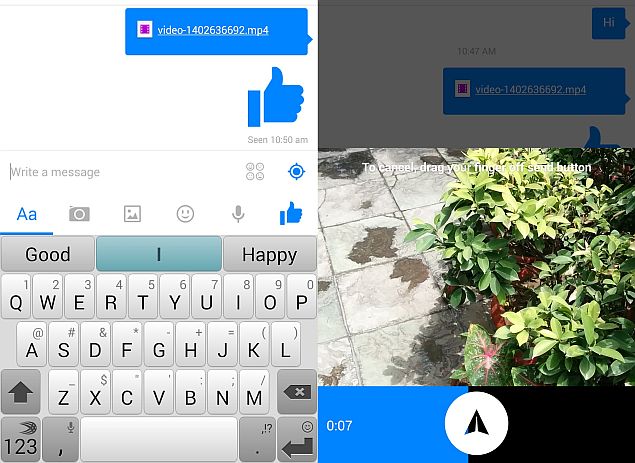
facebook_messenger_update_video_like_screenshot_ndtv.jpg
Facebook's Messenger has borrowed another feature of its rival messaging app, Snapchat, as it rolls out its latest update for Android and iOS users that deals with the video sharing feature and the 'Like' button.
The latest update (version 6.0 for iOS), brings a key feature through which Facebook Messenger users can shoot and play 15-second video messages directly from the handset's camera (by tapping and holding the record button) within the app in the form of a video chat. While the front-facing camera is triggered by default, the rear camera can also be used.
The Facebook Messenger update also lets users press and hold the 'Like' button and a send even a bigger thumbs up for the things they really like.
"Instant Video Sending: Shoot and play 15-second video messages from the camera right in the app. Big Likes: Press and hold to send an even bigger thumbs up when you really, really like something," states the Facebook Messenger app listing's What's New section on the App Store.
The updated Facebook Messenger app can be downloaded from Google Play and the App Store.
Last month, Facebook rolled out an update for its Facebook Messenger app, which brings the app version 4.0 to version 5.0 for Android users. In the update, users could send videos from their smartphone's gallery, and play them right in the Facebook Messenger app. Users could also take photos via the Facebook Messenger app, and share them right after clicking them.
Also added to Facebook Messenger v5.0 for Android are stickers shortcuts, which guides users to the relevant sticker packs when they receive a new sticker from a friend. A new row of icons is also available, for quick access to functions such as inserting stickers and other media.
The iOS users got the same version 5.0 update for Facebook Messenger in April. The official changelog noted that the Facebook Messenger app (version 5.0) for iOS added video sharing, which now allows users to play the shared videos in the app itself; instant photo sharing, which offers the option to send a clicked image with just one tap in the app; improved search, which will add quick search of people and groups, as well as other fixes including stickers and groups.
Facebook is of course due to take on Snapchat in another way, with the anticipated launch of its own ephemeral messaging app, Slingshot, which wasbriefly listed on the App Store.
Notably, Facebook's new ephemeral chat app Slingshot, unlike Snapchat and other chat services, forces a user to send an image or 'sling' (as Facebook calls it) it in order to view an image, as seen in the briefly listed screenshots.
Other features in the app include the ability to write captions and make drawings on the images and video messages sent by a user, something already found on Snapchat. The Slingshot app also offers users viewing a message the ability to send a reaction to an image. The app maintaining its ephemeral nature deletes an image once it is swiped away by the user.

Android v4.4.2 KitKat Imperium custom rom is now available for Samsung galaxy s4:tutorial

A new Android v4.4.2 KitKat Imperiumcustom firmware has been made available to Samsung Galaxy S4 I9505.
The new custom ROM is based on the v4.4.2 KitKat OS (XXEUFNC9) and brings in loads of features, such as OpenVPN support, Aroma installer, Sqlite3, Zipaligned, Deodexed and many more performance enhancing tweaks.
Prerequisites (things to remember before rooting the device):
  • Rooting enables users to install custom ROMs or third party apps of their choice and also perform tweaks in the settings to improve the device's performance. Though users get more control over the smartphone this way, it makes the company warranty void and they will no longer be liable to provide future updates [warranty can be restored by flashing the device with stock-ROM].
  • This custom ROM has to be installed only on the Samsung Galaxy S4 I9505 LTE model [To check your model: Go to Settings >> About tablet >> model number]
  • Rooting of devices leads to a complete data wipeout, so make sure of backing up all data [Install Clockwork Mod (CWM) Recovery/ TWRP in the smartphone to save the data].
  • Users make sure they have installed USB drivers on the PC to connect your Samsung Galaxy S4 smartphone.
  • Make sure your device has more than 80 percent battery.
[Disclaimer: This procedure is very technical and should be performed by a person with sound knowledge of rooting (or manual software installation) Android devices. If the step-by-step installation process is not followed properly, there are chances of the smartphone getting bricked or being permanently irreparable. International Business Times, India Edition cannot be held responsible for any damage or claims from readers if the procedure does not yield the required results or if the smartphone is bricked. Hence, users are advised to proceed with caution.]
Step-by-step installation procedure of Android v4.4.2 KitKat Imperium Custom ROM for Samsung Galaxy S4 I9505 LTE:
Step 1: Download Android v4.4.2 KitKat ImperiumCustom Firmware and Google Apps (here) in to your PC.
Step 2: Connect Samsung Galaxy S4 I9505 to PC via USB chord.
[Note: Before plugging the phone to the computer, be sure that you have installed USB driver software, if not, click here to download firmware]
Step 3: Then, place Android v4.4.2 Imperium zip file and Google Apps .zip file into the phone's SD card memory. [Note: Users are advised to paste the .zip file in SD card root, not in any other folder.]
[Note: Before users' begin installing the custom software, make sure the device is already rooted and must have installed ClockworkMod Recovery.]
Step 4: Now turn off the device and disconnect from the PC.
Step 5: Then perform the regular Recovery Mode sortie by press holding 'volume (down)', 'home' and 'power' buttons.
Step 6: After entering ClockworkMod Recovery mode, perform full data wipe, by choosing 'wipe data/factory reset' [Note: use Volume keys to navigate and power button to select options, while operating under Recovery Mode]
Step 7: Now, clear the cache memory by selecting 'wipe cache partition'
Step 8: Then to go back to ClockworkMod recovery, and select 'advanced' and tap 'wipe dalvik cache' [Note: This step is optional, but many recommend this procedure so that user will not face boot loops or any other errors in the middle of custom ROM installation]
Step 9: Again come back to main recovery screen and then tap 'install zip from SD card'
Step 10: Then tap 'choose zip from sdcard' and go to Android 4.4.2 ROM .zip file in SD card and enter the installation process. Again repeat the same procedure to install Gapps (Google Apps) file [Note: use Volume keys to navigate and power button to select options]
Step 11: Once done with the installation process, navigate to '+++++Go Back+++++' and re-start the device by opting 'reboot system now' seen in the recovery menu.
Now, your device (Samsung Galaxy S4 I9505) will take a minimum five minutes to complete the booting process.
Users then head to Settings >> select About phone to confirm the installation of custom firmware Android 4.4.2 KitKat Imperium.

Android 5.0 Lollipop; releasing soon

Google hinted the imminent release of Android 5.0 Lollipop in another tweet.
There is no stopping Google from "accidentally" (or intentionally) leaking its upcoming devices and software. The tech giant leaked the supposed Android version 5.0 through an image posted in the company's Twitter account.
Reddit user 'thatdudefromthehood' has spotted some clues on the photo posted by Google. The image showed the time 5:00 am/pm, which signified that Android 5.0 is coming. This is the same pattern used by the company when it introduced Android 4.4 Kitkat OS. As of now, the official name of the OS is still unknown.
According to reports, the next generation of Android OS will be like a desktop OS packed in a mobile device. The next Android version will give its user interface a major facelift. Android Police reported that Google is currently experimenting with Project Hera, which "essentially represents Google's effort to unify the experience users have in Android, Chrome, and Search all on your Android-powered device."
The new project aimed to change the users' experience who run Google's Search and Chrome apps in their smartphones. Google is also expected to integrate HTML 5 in the software that will enable users to multi-task or open and run apps and widgets at the same time.
Reports added that the next version of Android OS will definitely support new processor and graphics chipset. This hinted that Android 5.0 will support 64-bit processor and will make processing smoother and more stable. Moreover, the new Android OS will be more secured and will prevent malwares. Android are often targeted by mobile malware given that the operating system is an open source.
The alleged version of the operating system was rumored to be unveiled at the I/O Developers' Conference kicking off on June 25. Consumers will surely get hold of more information about the next OS.

Sunday, 15 June 2014

CyanogenMod unveiled CM10 android 4.4.3 for galaxy s4: installing instructions and review

The CyanogenMod 11.0 M7 (CM11) builds, based on Android 4.4.2, are now available in the download servers. The latest CyanogenMod build integrates a number of changes.
Common: Theme Chooser UI Overhaul
Common: Calculator app redesign (courtesy Xlythe)
Common: Performance Profiles
Common: Improved theming performance on low memory devices (~512MB RAM or less)
Trebuchet: Move settings to new slide-out panel
Trebuchet: Consolidate settings for home and drawer options
Media: Add FFMPEG support (expanded media format support)
Bluetooth: Improved support for new car audio systems and docks
Various small bugfixes, global and device-specific
Besides, the team has added the Android 4.4.3 source code with CM for nightlies, which is also available for the LTE version of Galaxy S4 with model number GT-I9505, powered by Snapdragon 600 quad-core processor.
Galaxy S4 users, who wish to update their handset with the latest builds of CyanogenMod nightly featuring Android 4.4.3, may follow the step-by-step guide.
IBTimes UK reminds its readers that it will not be responsible for any damage to the device. Before following the installation guide, users are advised to verify their devices meet the following requirements.
Pre-requisites
1) Install USB Drivers for Galaxy S4 to transfer files between the Android device and the computer.
2) Enable USB Debugging Mode on the phone to connect it with the computer and use Android SDK with it. [Navigate toSettings>> About phone. Tap on Build Number seven times, a message appears saying 'You are now a Developer.' Go back toSettings menu and Developer Options menu will be displayed. Click on it and select the box which says, USB Debugging.]
3) As the tutorial might wipe out all data of the phone, create a backup. If the device has any custom recovery such as ClockworkMod or, TWRP then back up data using the same.
4) If the Android phone powers off due to lack of battery during the process, it could damage the device. Therefore, the Galaxy S4 should have above 80% battery charge.
5) The phone should be rooted and have the latest version of recovery.
6) This Android 4.4.3 KitKat CyanogenMod 11.0 M7 works only with LTE Samsung Galaxy S4 GT-I9505. As applying this to any incorrect variant might brick the device, verify the model number of Galaxy S3 by navigating to Settings>> About phone>> Model number.
7) After flashing the ROM if the device gets stuck on the booting animation or experiences boot loop then perform wipe cache partition and wipe dalvik cache for a few times before rebooting the device.
8) Once the ROM is installed, users are advised to give 10 minutes to the ROM after the device boots up for the first time for better user experience.
Download files
How to install Android 4.4.3 KitKat on Galaxy S4 I9505 with CM11 nightly
Step-1: Connect Galaxy S4 to the computer using USB cable. Now copy the downloaded files to the internal storage of the phone. But do not extract/unzip the files
Step-2: Unplug the USB cable from the phone and switch it off
Step-3: Enter into recovery mode by pressing and holding Volume UpHomeand Power buttons together. Release all the buttons when CWM/TWRP recovery logo appears on the screen. This guide supports both CWM and TWRP recovery
Step-4: Create a Nandroid backup of the current ROM, which can be restored later if the new ROM does not work or if you wish to go back to the previous ROM.
CWM: Select backup and restore, name the file and confirm the process. Go back to main recovery menu when the backup is completed
TWRP: Press Backup, name the file then swipe to confirm the process
Step-5: You need to Factory Reset the Galaxy S4. This will wipe all data from the system partition, which means the device will lose installed apps data and all the other system files [Factory Reset does not delete contents from internal or external storage.]
CWM: Select wipe data/factory reset and confirm the process
TWRP: Press Wipe and swipe to confirm
Note: Do not skip this process as the new ROM might not boot into normal mode.
Step-6: Install CM11 Android 4.4. 3 ROM on Galaxy S4
CWM: Select install zip from sdcard thenchoose zip from sdcard. Now browse to the location where KitKat ROM is saved. Select it and confirm installation
TWRP: Press Install, find the ROM file and swipe to confirm installation
Step-7: When the ROM is installed, follow the similar procedure (step-6) to flash Gapps file
Step-8: After the installation process is completed, return to the custom recovery screen and reboot the phone into normal mode.
Note that the first boot will take a few minutes; So, don't press any button until the home screen of the new ROM appears.
The Galaxy S4 should now be updated with Android CM11 nightly based on Android 4.4.3. Head over to Settings>> About phone to verify the new software version of the device.
[Source: Android Geeks]